


Three terminals, two browser windows, an IDE, Claude generating code in one pane, API docs in another, and Spotify playing somewhere in this mess.
Where is that song coming from?
That moment, the one where you can't find your own music player on your own computer, is when I accepted that my window management had broken down. Not a dramatic crash. A slow accumulation of friction that I'd been compensating for with muscle memory and denial.
Every once in a while, outside forces change how you use your own equipment. The shift is usually gradual enough that you adapt without noticing. Then one day you look at your setup and realize it's held together with habits from a different era.
LLMs did that to my desktop. Before AI coding tools, the daily window layout was simple enough: IDE on the left, terminal on the right, browser on demand. Three windows, predictable positions. Then Claude and Opencode showed up, and suddenly I needed a terminal for the AI, a terminal for actual commands, the IDE, a browser for documentation, sometimes a second browser window for the AI chat, and occasionally a second IDE for reference code. The window count doubled. The old habits stopped scaling. I was one monitor purchase away from staging my own intervention.
The Window Manager Graveyard
I've tried them all. Or at least I thought I had.
Rectangle was fine for snapping windows into halves and thirds. Magnet did the same thing with different shortcuts. BetterTouchTool can do everything including making breakfast, but its window management is bolted onto a gesture tool. Raycast has window management built in, and it works well enough for the basics.
All of these share the same philosophy: you manually place rectangles on a screen, and the tool helps you do it faster. Drag here, snap there, memorize a keyboard shortcut for "right half" and another for "left third." It works when you have three windows. It falls apart when you have nine.
The problem isn't the tools. The problem is the abstraction. These managers treat your desktop as a canvas where you paint with windows. When the painting gets complicated, you don't need a better brush. You need a different medium.
Tiling Managers: A Different Species
There is a class of window managers that serves a wholly different audience. Tiling managers. If you've spent any time on Linux, you know i3 or Sway. On macOS, the options used to be yabai, which requires disabling System Integrity Protection (hard pass for a work machine), or Amethyst, which is decent but limited in how far you can customize it.
AeroSpace changed the equation. It's an i3-inspired tiling window manager for macOS that requires zero SIP hacks, uses a plain TOML config file, and treats your desktop as a programmable system rather than a drag-and-drop canvas. Here's what it looks like in practice.
The core concept: windows tile automatically. Open a new window and it splits the space with whatever's already there. No dragging. No snapping. The layout is a tree structure where containers hold windows, and you navigate between them using keyboard shortcuts. Workspaces are numbered 1 through 9, persistent, and instant to switch. No animation. No Mission Control swoosh. Press a key, you're there.
The mental model shift is what matters. You stop thinking "I need to put this window in the right half of my screen" and start thinking "terminals live on workspace 2, browsers on workspace 3." The spatial arrangement becomes automatic. Your brain gets freed up for the actual work.
People who've adopted it describe the same arc: a couple of rough days learning the shortcuts, then a week of surprising productivity, then a point where you forget AeroSpace is even running. It's just how the computer works now.
The QWERTZ Problem
There's one catch for us Germanic folks. AeroSpace's default bindings lean on characters like [ and ] that sit comfortably under your fingers on an English QWERTY layout. On a German QWERTZ keyboard, those same characters need Alt+5 and Alt+6. About as ergonomic as typing with oven mitts.
A gentleman and a scholar from Switzerland found the solution: the Hyper Key.
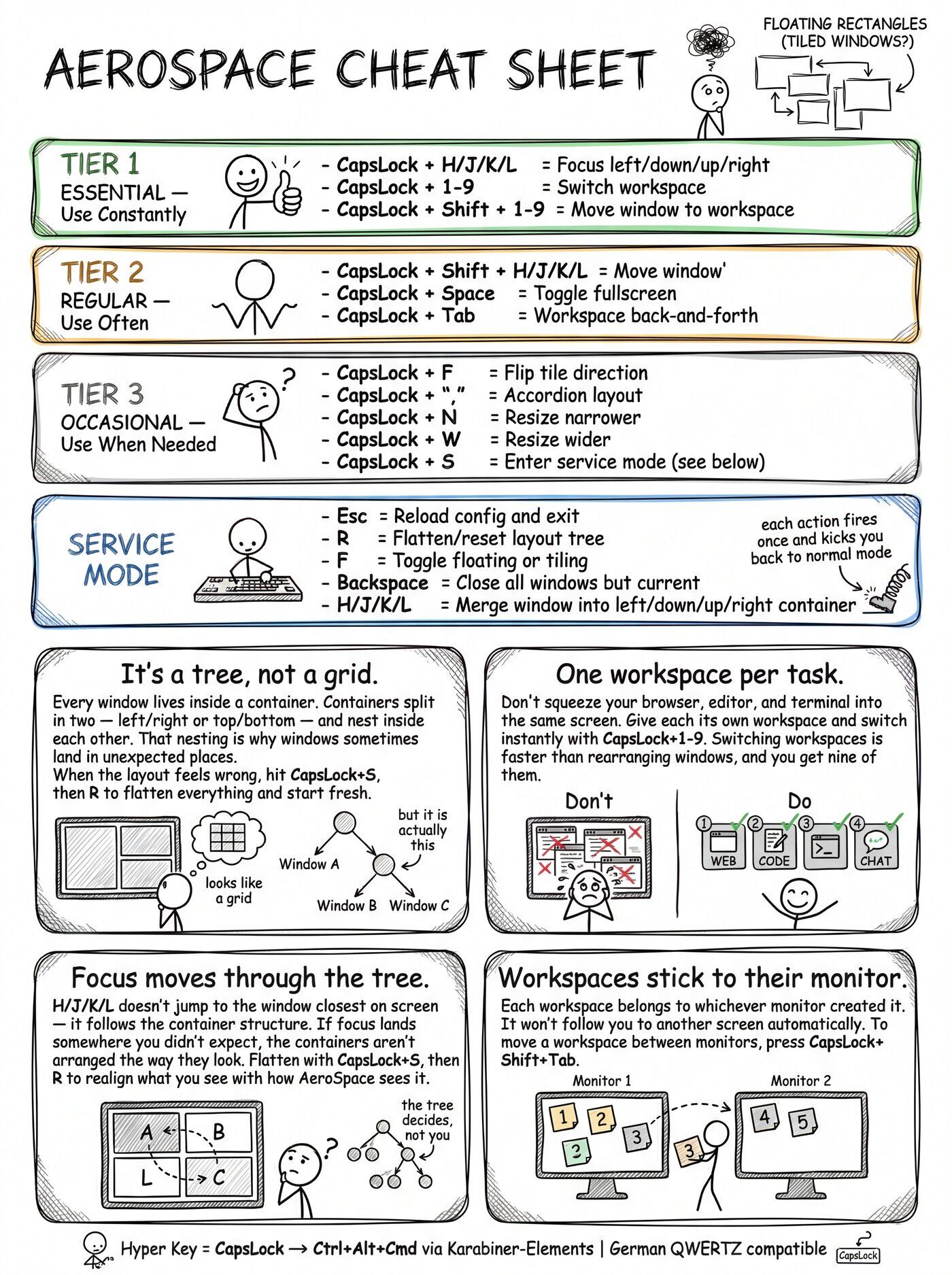
CapsLock is the most useless key on any keyboard. It sits in prime real estate, right next to the home row, and its only purpose is occasionally ruining your passwords. So you repurpose it. Using Karabiner-Elements, you remap CapsLock to simultaneously press Ctrl+Alt+Cmd. That three-modifier combination is so unlikely to conflict with any existing shortcut that it becomes your own private namespace. One key on the home row opens up an entire layer of bindings that work identically on any keyboard layout.
CapsLock+H to focus left. CapsLock+J to focus down. CapsLock+3 to jump to workspace 3. No brackets, no Alt conflicts with German umlauts, no finger gymnastics. Vim-style navigation with a single modifier key.
I made a cheat sheet that covers the full shortcut hierarchy, the tree-based layout model, and service mode. Save it, print it, tape it to your monitor until the muscle memory kicks in.
The Config
The Swiss approach adapted to a German QWERTZ layout, with workspace assignments and auto-routing rules. Here are the patterns that matter:
# Swap Y/Z to match German QWERTZ physical key positions
[key-mapping.key-notation-to-key-code]
    y = 'z'
    z = 'y'

# Hyper = CapsLock → Ctrl+Alt+Cmd (via Karabiner-Elements)
[mode.main.binding]
    ctrl-alt-cmd-h = 'focus left'        # vim-style navigation
    ctrl-alt-cmd-j = 'focus down'
    ctrl-alt-cmd-k = 'focus up'
    ctrl-alt-cmd-l = 'focus right'
    ctrl-alt-cmd-shift-h = 'move left'   # + shift to move windows
    ctrl-alt-cmd-1 = 'workspace 1'       # + number for workspaces
    ctrl-alt-cmd-shift-1 = 'move-node-to-workspace 1'
    # ... same pattern through 9

    # Shell scripts mapped to keys
    ctrl-alt-cmd-g = 'exec-and-forget ~/.config/aerospace/toggle-gaps.sh'
    ctrl-alt-cmd-m = 'exec-and-forget ~/.config/aerofocus/aerofocus.sh --notify --cycle'
    ctrl-alt-cmd-s = 'mode service'

# Service mode — CapsLock+S, then one bare key to act and exit
[mode.service.binding]
    esc = ['reload-config', 'mode main']
    r   = ['flatten-workspace-tree', 'mode main']
    f   = ['layout floating tiling', 'mode main']
    backspace = ['close-all-windows-but-current', 'mode main']

# Auto-route messenger apps to workspace 9
[[on-window-detected]]
if.app-id = 'com.tinyspeck.slackmacgap'
run = ['move-node-to-workspace 9']
# ... same for WhatsApp, Signal, Messages, FaceTime

# Float transient windows
[[on-window-detected]]
if.app-id = 'com.apple.finder'
run = ['layout floating']
# ... same for System Preferences, Calculator, 1Password
The full config with all the scripts it references is in the download bundle. Unzip, copy into place, aerospace reload-config.
A few things worth calling out.
The on-window-detected callbacks at the bottom are where the programmability really pays off. Every messenger app, WhatsApp, Slack, Signal, Messages, FaceTime, gets auto-routed to workspace 9. Open Slack and it vanishes to its designated corner without interrupting whatever you're focused on. Workspace 9 is the penalty box for apps that won't stop talking. CapsLock+9 when you want to check messages, CapsLock+2 to get back to your terminal. No window shuffling.
The floating rules are equally useful. IntelliJ dialog boxes, System Preferences, Calculator, Finder, 1Password: these are transient windows. Tiling them makes no sense. They float above the tiled layout, you interact with them, they go away. Once you tell AeroSpace which windows are visitors rather than residents, the two modes coexist cleanly.
Service mode (CapsLock+S) is borrowed from i3's concept of binding modes. You press CapsLock+S to enter a secondary key layer where bare keys (no modifier) trigger actions: r to reset the layout tree, f to toggle a window between floating and tiling, backspace to close everything except the current window. Press Escape to exit and reload the config. It's a nice pattern for rarely-used commands that you don't want burning a Hyper+key binding.
The Y/Z swap at the top is the kind of small thing that QWERTZ users will appreciate. German keyboards physically swap Y and Z compared to QWERTY. Without this two-line fix, every vim-style binding (j/k for vertical, h/l for horizontal) would work fine, but any binding involving y or z would hit the wrong physical key.
AeroFocus: Where Is That Music Coming From?
Once you realize that AeroSpace bindings can execute arbitrary shell commands via exec-and-forget, things get interesting fast.
There's a problem that has plagued desktop GUIs for decades: finding whatever is currently playing music. Spotify might be on workspace 4. Maybe you're listening to something in a YouTube tab on workspace 3. Or Apple Music on workspace 7. You hear the song, you want to skip it, and you have no idea where the playback controls are.
I mapped CapsLock+M to a script I called AeroFocus that solves this in three layers:
- Detect what's playing by querying macOS's Now Playing API to get the app name, track title, artist, and playback state
- Resolve which AeroSpace window matches, using fuzzy title matching with progressive fallback
- Focus that window via AeroSpace, and if it's a browser, use AppleScript to switch to the exact tab playing audio
The resolve layer does the heavy lifting. When Spotify reports it's playing "Bohemian Rhapsody - 2011 Remaster," the window title might truncate that differently. So the resolver tries the full title first, falls back to 75% of the title, then 50%, then just the app name. This cascade handles the real-world mismatch between what media APIs report and what window titles actually say.
For browser tabs, the focus layer gets creative. Chrome and Safari expose their tabs via AppleScript, so the script iterates through all tabs looking for a title match and switches to it. Firefox, being Firefox, refuses to cooperate with AppleScript. So the script takes the brute-force route: it opens the address bar, types a % tab-search query through simulated keystrokes, and picks the first match. It's the duct tape of browser automation, but duct tape holds.
The --cycle flag handles the case where multiple windows match. If you have YouTube open in two different Chrome windows, pressing CapsLock+M repeatedly cycles through them. State gets persisted to /tmp/aerofocus-last between invocations.
The first time I pressed CapsLock+M and watched the focus jump across workspaces to land on the exact browser tab playing a YouTube video, I understood what programmable window management actually means. The GUI version of this feature doesn't exist. No window manager has a "find my music" button. But with a scriptable one, 84 lines of bash solve a problem that has annoyed me for years.
Getting Your Bearings Back
Tiling solves the "where do windows go" problem but creates a different one: spatial disorientation. When every workspace is a grid of similar-looking rectangles, and you're jumping between workspace 2 (terminals) and workspace 5 (documentation) fifteen times an hour, you occasionally land somewhere and blank on what you're looking at.
macOS's native Cmd+Tab shows app icons, not window previews. Not helpful when you have four Chrome windows across different workspaces.
AltTab patches this gap. It replaces the macOS app switcher with a Windows-style Alt+Tab that shows actual window thumbnails with live previews. You see what's in each window before you switch. It's a small addition, but it fills the one hole in the tiling workflow where you genuinely need visual context to reorient yourself.
The Deeper Point
When the tools you use every day change (and LLMs changed them radically), the meta-tools that organize your workflow need to change too. Drag-and-snap window managers were built for a world where you had three or four windows to arrange. They aren't the right tool for a world where you routinely have eight or ten spread across multiple contexts, with AI assistants demanding their own screen real estate.
The answer for me turned out to be programmability. A config file instead of a preference pane. Shell scripts mapped to keys instead of manual drag operations. Rules that route windows automatically instead of requiring me to place them every morning.
CapsLock was doing nothing. Now it runs my desktop.

